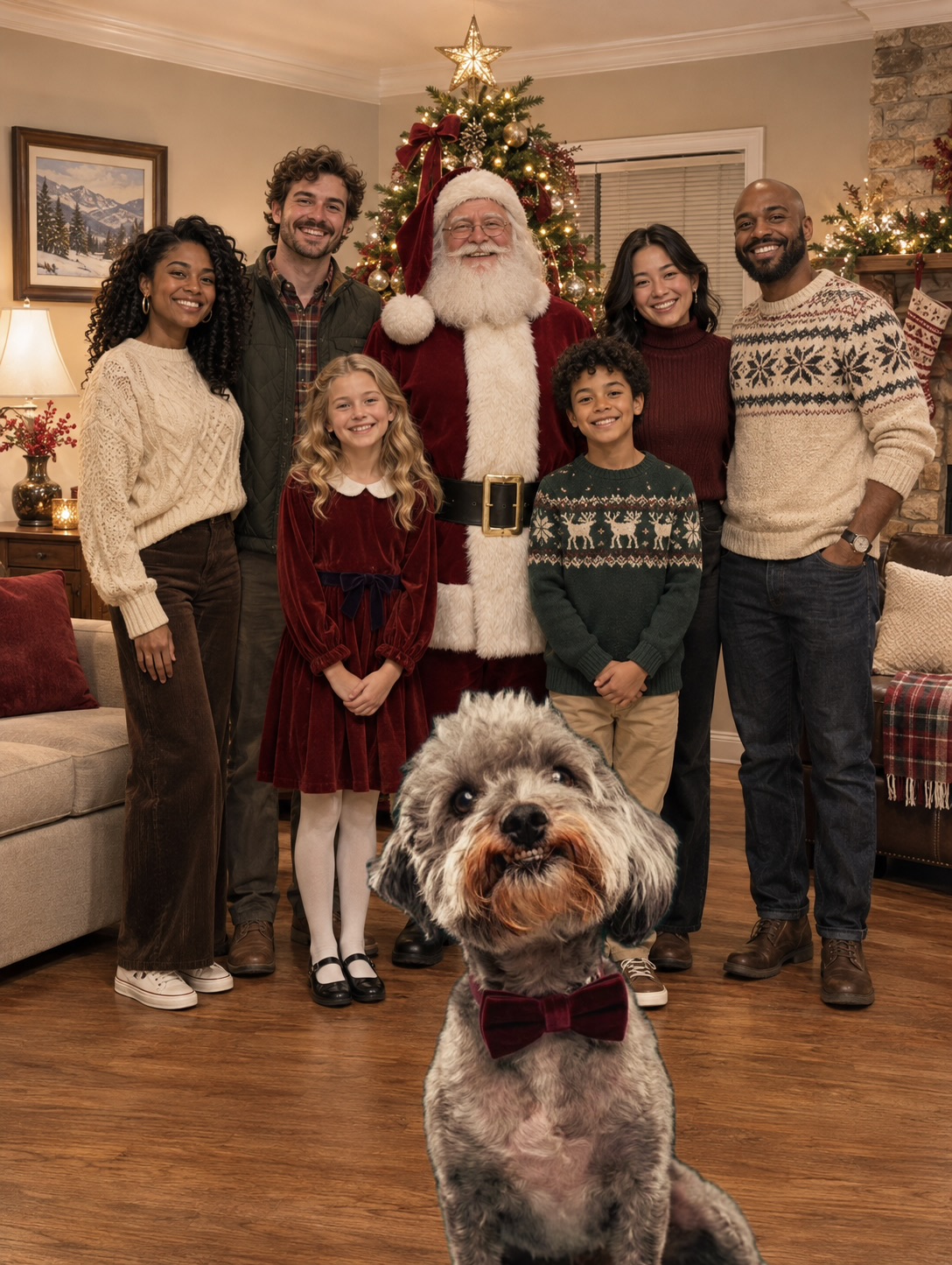
Everyone is smiling. Nobody is blinking. You finally have a family photo worth putting on a Christmas card—and your pet is missing.
You don’t have to gather everyone for another photo shoot. On a compatible iPhone, you can turn a pet photo into a sticker and place it on your family picture using the built-in Photos app. No separate editing app is needed for this method.
It’s a fun way to include a dog who wouldn’t sit still, a cat who declined the invitation, or a festive pet portrait you’ve already created. Think of it as a playful photo collage: the sticker sits on top of the picture, rather than automatically becoming a seamless part of the scene.
What you’ll need
- Your family photo saved in Photos.
- A separate pet photo or downloaded pet portrait saved in Photos.
- An iPhone that supports photo cutouts and stickers in Markup. The screens and button positions can vary by iOS version.
Choose a pet image with a clear outline. A full-body image works well when you want the pet standing or sitting near the family. A head-and-shoulders portrait can work as a decorative corner cameo. The cutout cannot restore paws or ears that are missing from the original image.
If you want to keep an untouched copy handy, duplicate your family photo before starting.
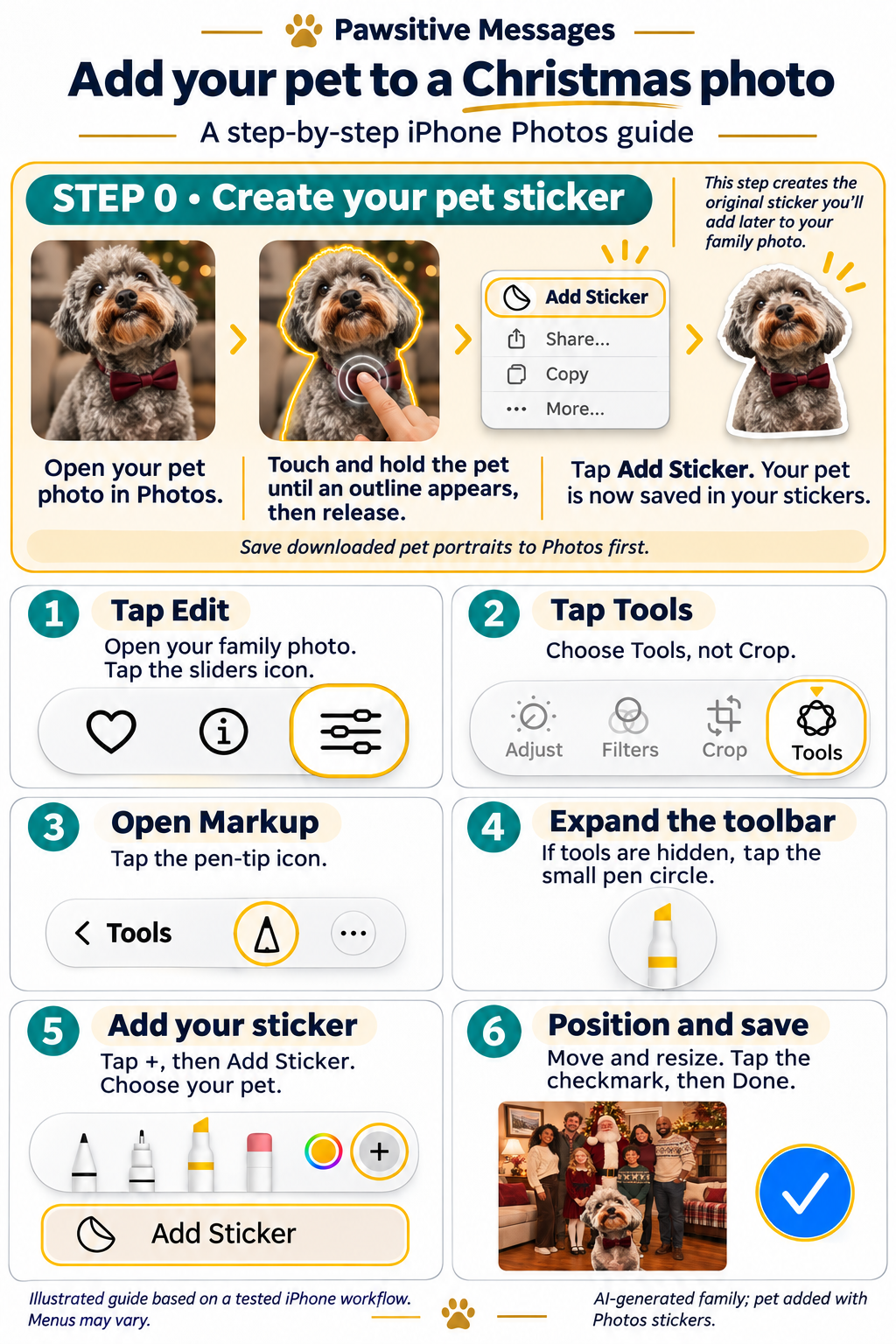
Step 0: Create your pet sticker first
Save your pet photo or downloaded pet portrait to Photos first. Open it so it fills the screen. Touch and hold the pet until its outline appears, then release and tap Add Sticker. Your pet is now ready to choose from the sticker collection.
For a simple cutout, leave decorative effects such as Outline or Comic off. If the phone does not isolate your pet clearly, try another image with better separation between the pet and background.
Step 1: Open your family photo and tap Edit
Return to your family picture and tap Edit, which may appear as a sliders icon.
You don’t need the Crop controls to add a sticker. If you’re looking at crop handles, move to the editing tools instead.
Step 2: Tap Tools
In the interface we tested, Tools is the loop-shaped icon at the bottom right. Tap it to leave the Crop controls and open the tools screen.
Step 3: Open Markup
Tap the pen tip inside a circle near the upper-right corner. This opens the screen labeled Markup.
Your iPhone may display the Markup icon in a different place. The important destination is the screen labeled Markup.
Step 4: Expand the drawing toolbar if it’s hidden
This is the easy-to-miss step. If you only see a small floating pen or marker circle, tap it to expand the toolbar.
In our test, the toolbar was collapsed into a yellow marker circle near the bottom-left corner. The sticker controls weren’t visible until we opened it.
Step 5: Add your pet sticker
In the expanded Markup toolbar, tap +, then Add Sticker. Choose the pet sticker you created earlier.
Use the sticker menu rather than trying to paste a copied subject directly onto the family photo.
Step 6: Position your pet and save
Drag the sticker into place. Select it and drag the handles around its outline to resize it. Use two fingers to adjust its angle if needed.
Start smaller than you think. Compare the pet with the people nearby, and place its paws near a believable floor line. Keep faces clear. For a deliberately playful card, a pet peeking in from the bottom corner can work better than trying to make it look perfectly realistic.
The sticker is placed over the photo. This simple method doesn’t provide detailed masking to tuck the pet behind someone’s arm or legs, or controls for creating realistic contact shadows.
Save and check the result
Tap the confirmation button in Markup—shown as a checkmark on the interface we tested—then finish saving with Done in Photos if prompted.
Reopen the picture to check the result. You can share the finished image digitally or use it in a Christmas-card layout. Before ordering printed cards, check the card provider’s image-quality guidance and preview the crop carefully. A sticker that looks good on a phone may look softer when enlarged in print.
Can I use a Pawsitive Messages portrait?
You can try this with a downloaded Pawsitive Messages pet portrait, just as you would with another saved pet image. Save the actual image to Photos rather than taking a screenshot of the page, and use a watermark-free copy you’re entitled to download.
The iPhone still needs to recognize the pet’s outline. Results will vary with the image, costume and background. Lifting the pet removes the surrounding Christmas scene, so keep the whole portrait in a separate card panel if you want to preserve that setting.
An illustrated pet beside a photographed family creates an intentionally mixed-media look. It doesn’t have to pretend to be an ordinary family photograph to make a lovely card.
Explore Pawsitive Messages holiday portraits
Quick fixes
I can’t find Add Sticker. Confirm you’re in Markup, expand the floating pen circle if the toolbar is collapsed, then tap +. If the option is still missing, check your iOS version and feature support.
My pet isn’t in the sticker collection. Open the pet image separately and complete the press-and-hold → Add Sticker step first.
The cutout looks rough. Try a clearer pet photo with less overlap between fur and background. A different starting photo may give a better outline.
My pet looks pasted on. That can happen with a simple sticker composite. Try a smaller corner placement or use the family photo and complete pet portrait side by side in a card layout.
The best Christmas photo doesn’t have to come from one perfectly timed camera click. Sometimes, including everyone just takes one extra sticker.
Our before-and-after example
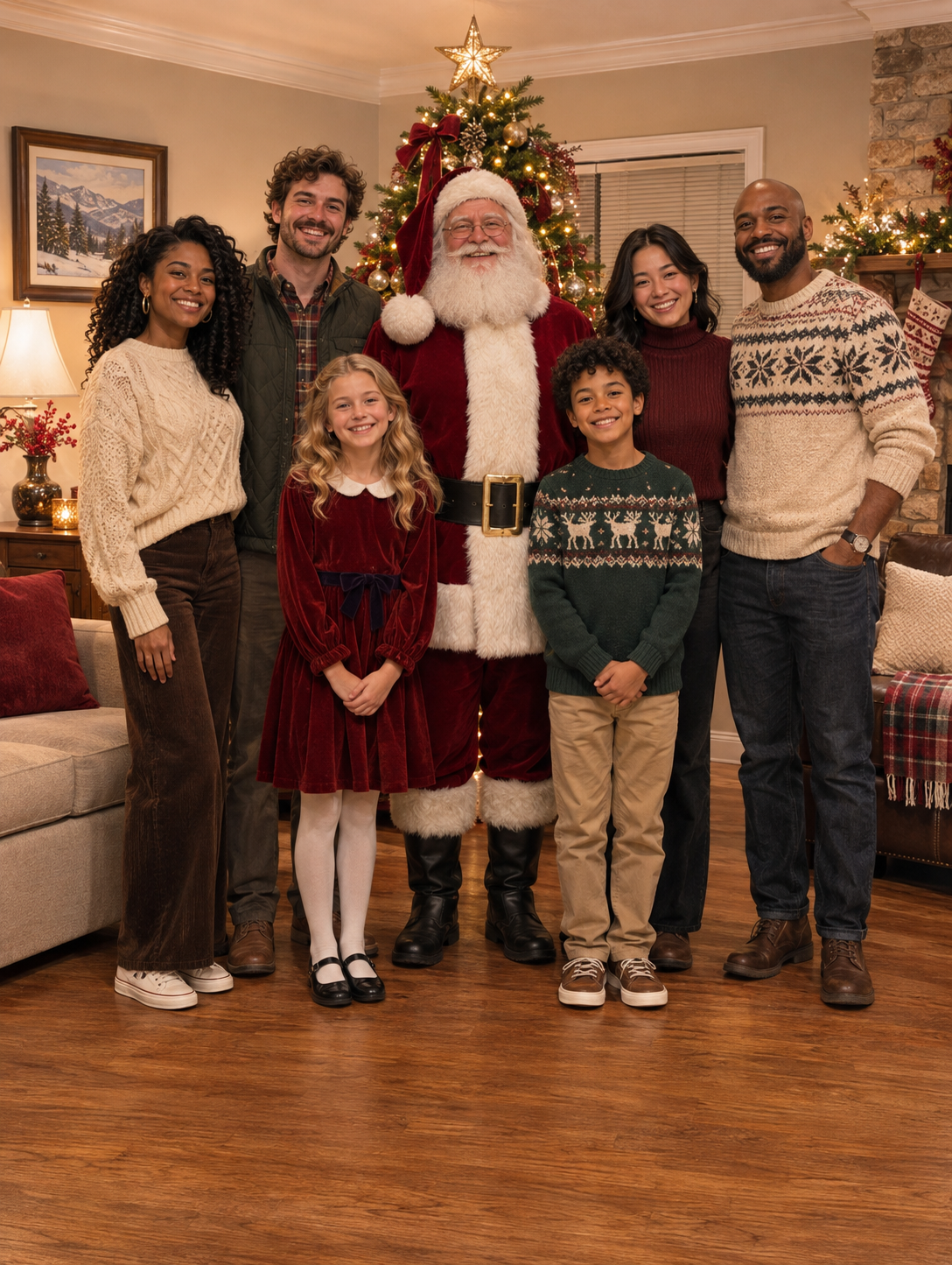
We tested this workflow on an iPhone on November 18, 2026. The family image is AI-generated for this demonstration; it is not a customer photograph or testimonial. The pet was added manually using Photos stickers.
Need words for your finished card? Find Christmas card messages from dogs and cats.
Apple instructions
For device-specific help: Make stickers from your photos on iPhone
Related articles
Pet Personality & Captions
Christmas Card Messages From Your Pet
Read articlePet Christmas Photo Ideas at Home: From a Cozy Setup to a Holiday Card
Read articlePet Art & Gift Guides
Personalized Pet Christmas Gifts: 7 Ideas They’ll Love
Read articlePet Photo Tips